Build a reliable setup, not just a working demo
Follow the steps in order, check hardware compatibility, and validate backups and security before production use. Always cross-check sensitive commands and settings against official documentation.
Does Docker support Debian 13?
Yes. Docker's official Engine documentation lists Debian 13 (Trixie) and Debian 12 as supported releases, including amd64, arm64, armhf and ppc64el architectures. Check your release with cat /etc/os-release and architecture with dpkg --print-architecture. This guide targets a Debian 13 system, such as a Proxmox VM, rather than the hypervisor host.
Why use a dedicated Debian VM?
A VM separates Docker from the Proxmox management stack and makes backups, upgrades and restore testing easier. Running Docker inside LXC can work in specific configurations but adds privilege, storage and compatibility considerations. For a first deployment, a VM is generally easier to maintain.
Record your exact CPU, RAM, storage and network configuration alongside your maintenance documentation.
Configure the official APT repository
Docker recommends installing its official GPG key and APT repository. Install ca-certificates and curl, create /etc/apt/keyrings, fetch the key from https://download.docker.com/linux/debian/gpg, and create /etc/apt/sources.list.d/docker.sources using the distribution codename and detected architecture. Follow the exact commands in Docker's current documentation, as repository instructions may change.
Install Engine and Compose
After sudo apt update, install the official packages with sudo apt install docker-ce docker-ce-cli containerd.io docker-buildx-plugin docker-compose-plugin. If older packages such as docker.io, docker-compose or containerd are present, review the conflicts documented by Docker before proceeding. Do not remove existing packages without checking affected services.
Verify the installation
Inspect the service using sudo systemctl status docker, then run sudo docker run hello-world. This fetches a test image and verifies that the engine can start a container. Check docker compose version as well: Compose V2 uses a space, unlike the legacy docker-compose executable.
Secure Docker
Membership in the docker group grants extensive host privileges; keep using sudo unless you explicitly need another access model. Published ports also require care: Docker warns that its network rules can bypass some ufw or firewalld configurations. Restrict exposed ports, keep packages updated and back up persistent volumes, not just Compose files.
Next steps
Start with a non-critical service, document volumes, ports and environment variables, and test restoration. If Docker runs inside a Proxmox VM, coordinate application-consistent backups with VM backups.
Docker for beginners — 8-book series
A practical eight-book series to discover Docker, understand containerization and learn to deploy your own applications.
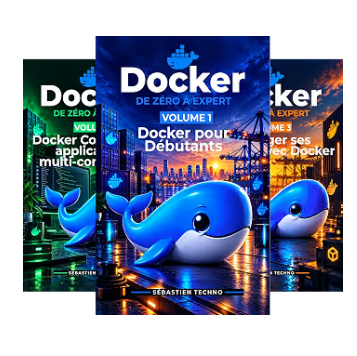
Amazon affiliate link. Sébastien Techno Docker collection artwork.
Which hardware fits your workload?
This comparison uses published specifications and intended workloads, not in-house benchmarks. Exact configurations depend on the seller.
| Criterion | Beelink EQi12 i5-1235U | MINISFORUM NAB6 i7-12650H | Mini-PC Intel N100 16 Go |
|---|---|---|---|
| CPU | Intel Core i5-1235U | Intel Core i7-12650H | Intel Processor N100 |
| threads | 12 | 16 | 4 |
| Memory | DDR4, variant-dependent | DDR4, variant-dependent | Advertised 16 GB |
| Best suited to | General-purpose homelab | More demanding CPU workloads | Budget / lightweight services |
Beelink EQi12 i5-1235U

Versatile mini PC for getting started with virtualization.
Balanced resources for several services.
Trade-offCheck Ethernet ports and exact sold variant.
MINISFORUM NAB6 i7-12650H
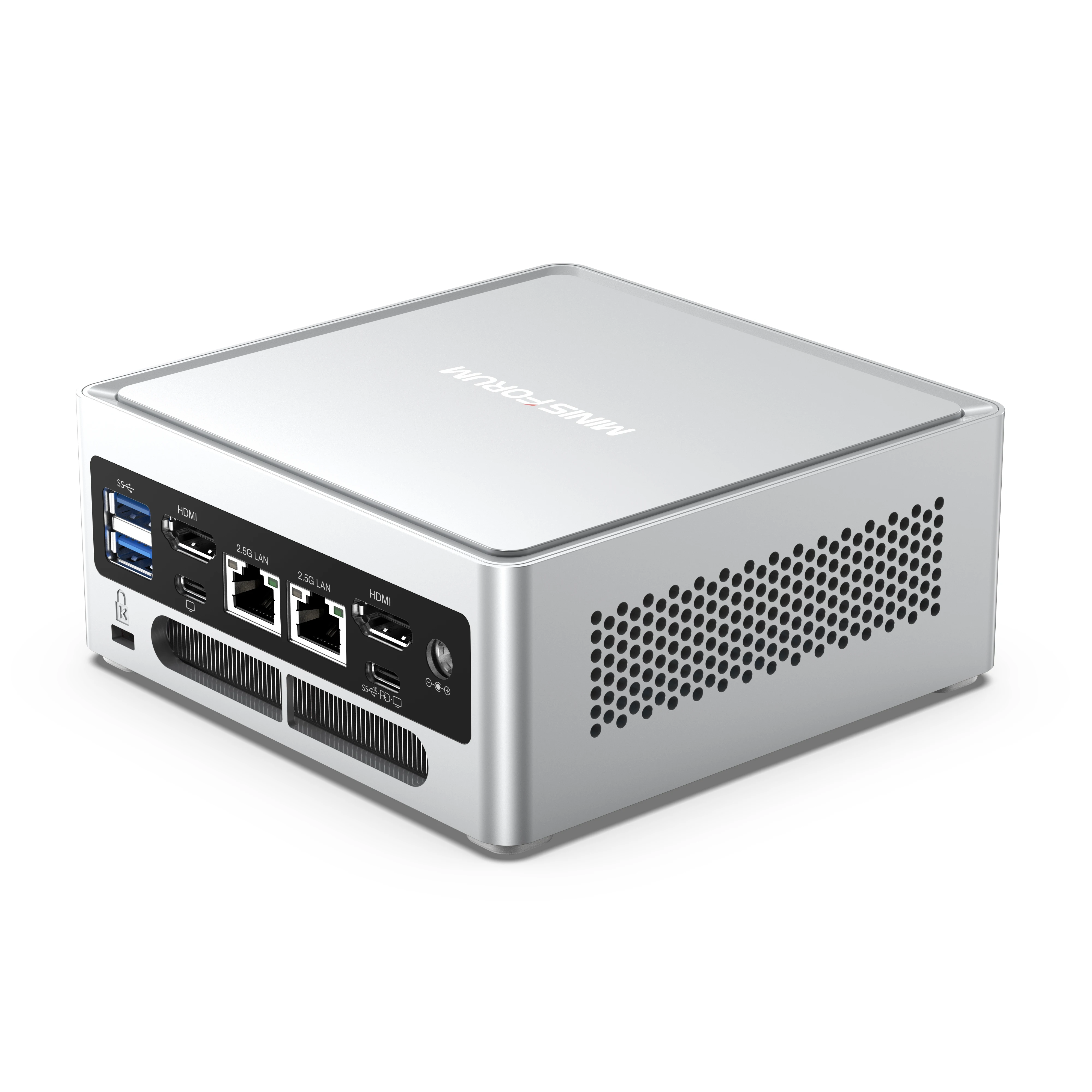
Mini PC for more CPU-intensive workloads.
More CPU threads for parallel workloads.
Trade-offCheck power draw, noise and cooling.
Mini-PC Intel N100 16 Go
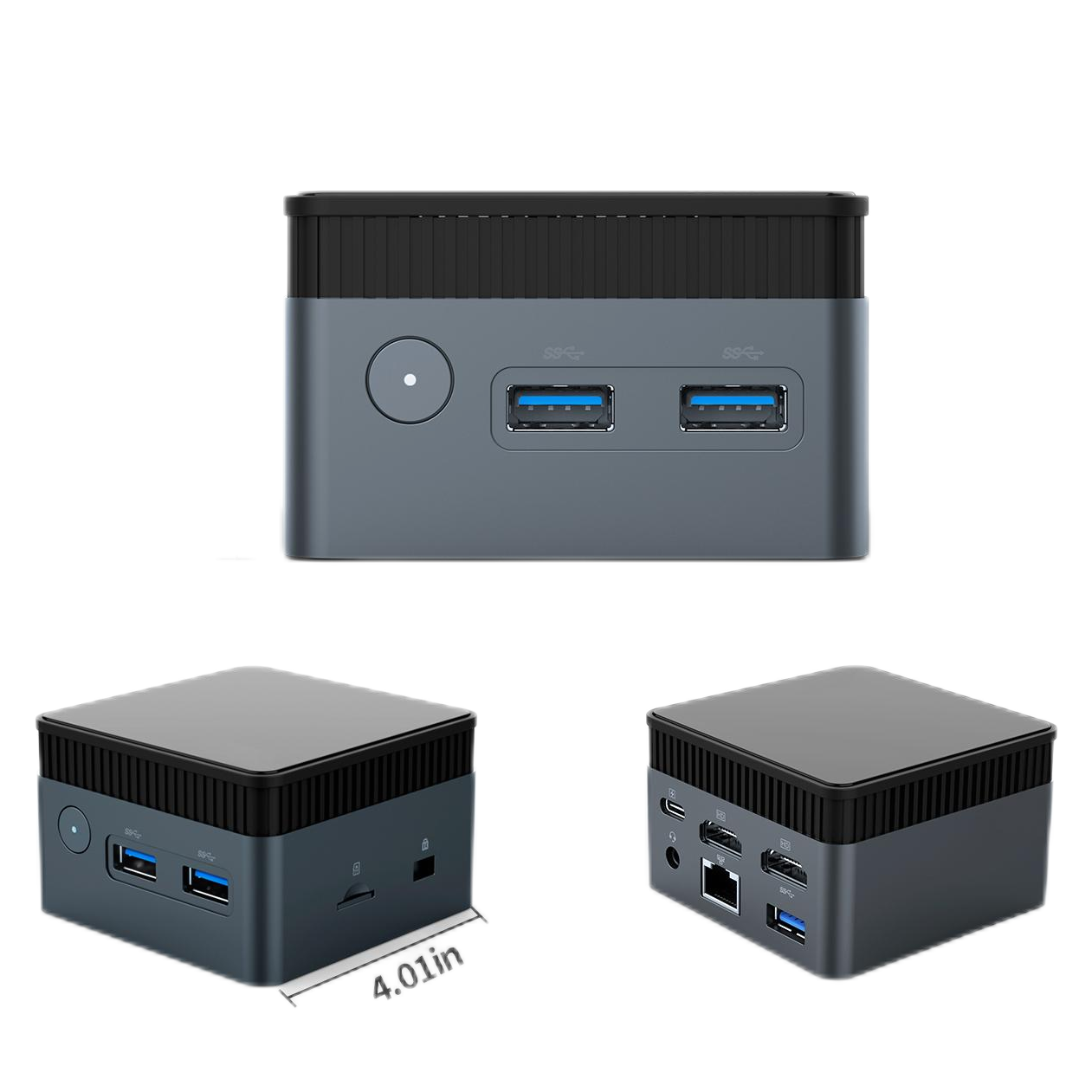
Budget category for lightweight services.
Low-power option for a few modest services.
Trade-offLess CPU headroom; brand and configuration unspecified.
Method: desk-based specification comparison, with no hands-on testing or performance measurements. No speed or reliability ranking is claimed. Affiliate links open Amazon searches; verify seller, reviews, photos, delivery and exact configuration before purchase.
Documentation and official sources
- Docker Engine installation on Debian ↗
- Docker post-installation security ↗
- Docker packet filtering and firewalls ↗
Based on official documentation. No in-house installation or performance benchmark is claimed.